
CS2 NVIDIA settings
Last tested: July 13, 2026
CS2 NVIDIA Settings
NVIDIA Profile Inspector
- Download NVIDIA Profile Inspector and our CS2.nip file. Both files will auto-download.
- Create a folder on the desktop and call it "FPSHEAVEN_TUTORIAL". Extract both ZIP files to the
FPSHEAVEN_TUTORIALfolder, opennvidiaProfileInspector, and click the button pointing at Import Profile(s).
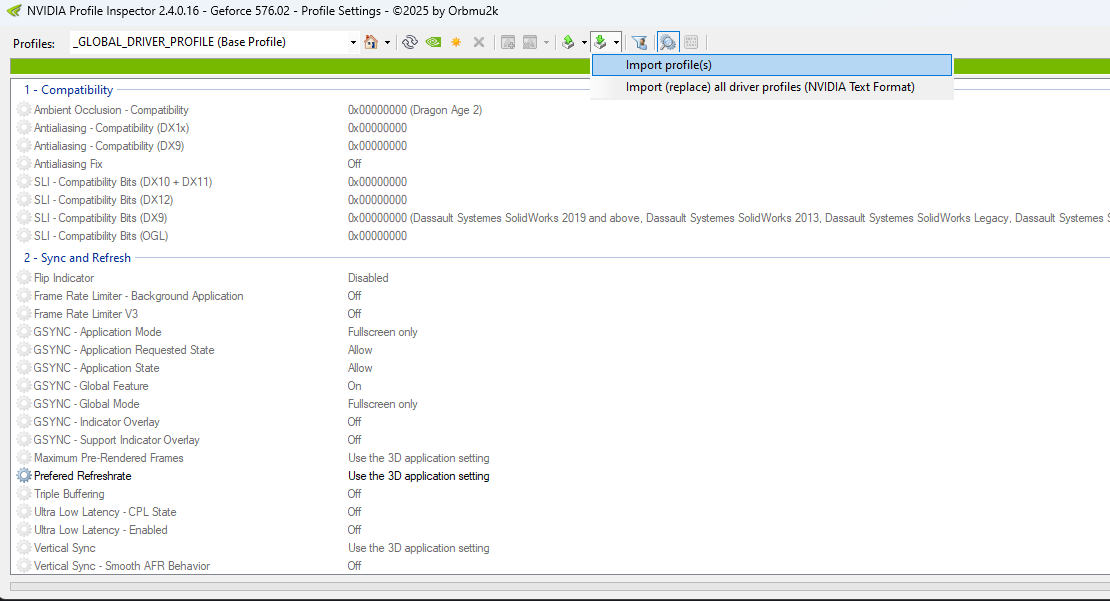
- Find and select
CS2.NIP, which is located in theFPSHEAVEN_TUTORIALfolder.

- You will see a Profiles successfully imported pop-up.
- Then click Apply Changes in the top right.
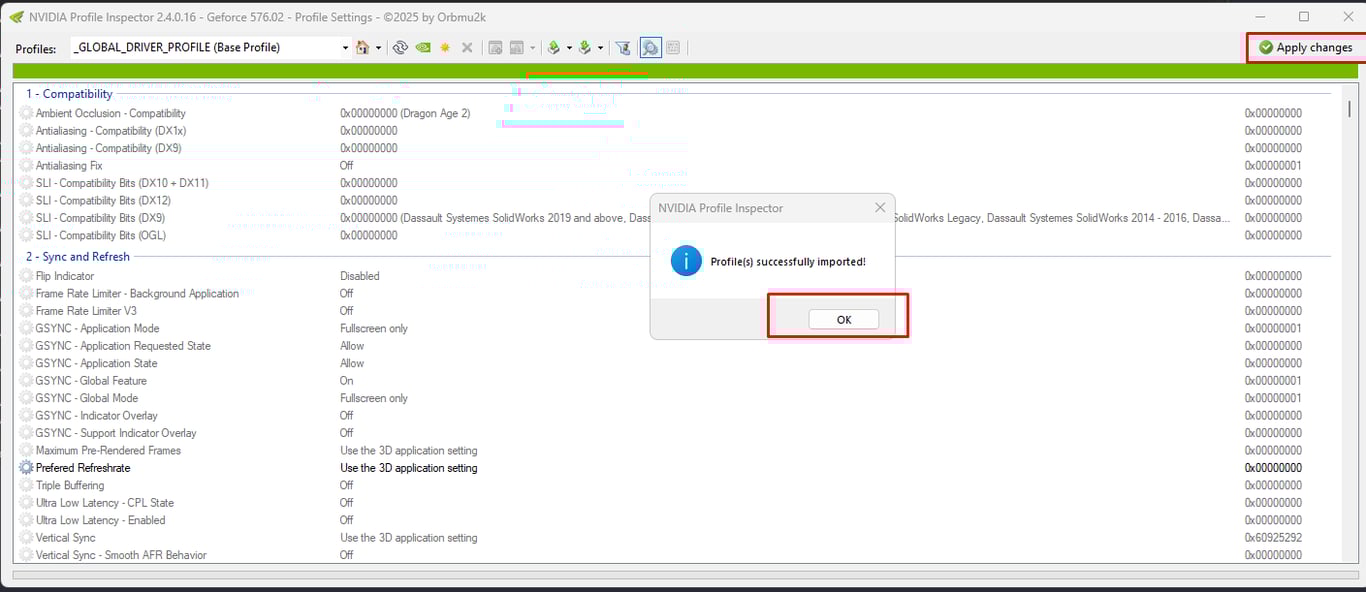
- This profile has settings specific to CS2.
- DO NOT change anything in the 3D section of NVIDIA. This will revert what we just did.
Scaling
Simple.
If you are playing on a native resolution, use no scaling.
If you are playing on a stretched resolution, set scaling to fullscreen and scale on the GPU. NVIDIA documents both of these in its Control Panel help (Adjust Desktop Size and Position).

Launch Options
-noreflex Only if you use an frame limiter like nvidia's or RTSS. Worth knowing that NVIDIA Reflex itself automatically caps the framerate when V-Sync is on (How To Reduce Lag).
-threads 9 if you have 8 physical CPU cores.
The threads logic is easy: take the number of physical cores you have and add 1.
- 14900K has 8 P-Cores, so
-threads 9 - 9800X3D has 8 Cores, so
-threads 9
-mainthreadpriority 2 To raise the game's main thread on a higher priority. Keep in mind that if you are on an older CPU, this might cause some
You can also use no launch options as well. They are not mandatory.
In-Game Settings
Boot up CS2 and head to the video settings.
The screenshot below is tuned for performance while still looking decent. You don't have to copy it exactly, but one thing is non-negotiable: always set Dynamic Shadows to ALL. Skipping this actually hurts visibility.
For MSAA, 2X or CMAA2 both work fine.
I personally run 4X because my system can handle it and makes the game looks less pixelated.

Sources & References
The technical claims in this guide are backed by the official documentation below and validated against our own testing.
Frequently asked questions
What is the CS2.nip file and how do I use it?
CS2.nip is an NVIDIA Profile Inspector profile with CS2-specific driver settings. Download NVIDIA Profile Inspector and the CS2.nip file, import the profile, and click Apply Changes. After importing, do not change anything in the NVIDIA 3D settings section or you will revert the profile.
Which CS2 launch options are worth using?
-noreflex if you use an external frame limiter like NVIDIA's or RTSS, -threads set to your physical core count plus one (a 9800X3D with 8 cores uses -threads 9), and -mainthreadpriority 2. Launch options are optional; the game runs fine without them.
Which CS2 video setting should never be lowered?
Dynamic Shadows must be set to ALL. Lowering it actually hurts visibility because you stop seeing shadows that reveal enemy positions. For anti-aliasing, 2X MSAA or CMAA keeps performance high while still looking decent.