
 Cart is empty
 CS2 NVIDIA Settings
NVIDIA Profile Inspector
- Download NVIDIA Profile Inspector and our CS2.nip file. Both files will auto-download.
- Create a folder on the desktop and call it "FPSHEAVEN_TUTORIAL". Extract both ZIP files to the
FPSHEAVEN_TUTORIALfolder, opennvidiaProfileInspector, and click the button pointing at Import Profile(s).
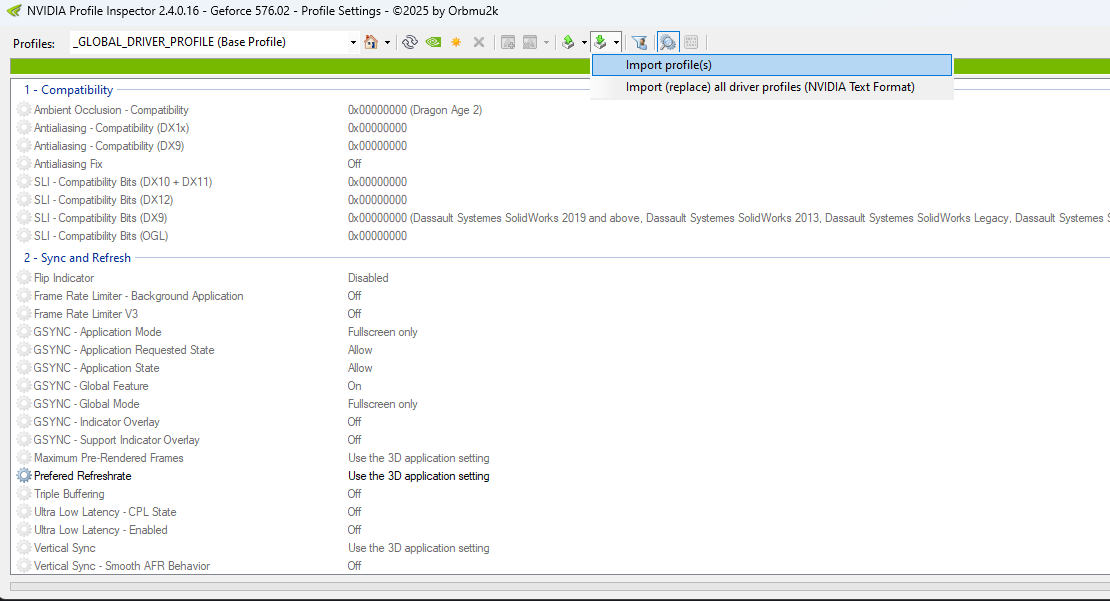
- Find and select
CS2.NIP, which is located in theFPSHEAVEN_TUTORIALfolder.

- You will see a Profiles successfully imported pop-up.
- Then click Apply Changes in the top right.
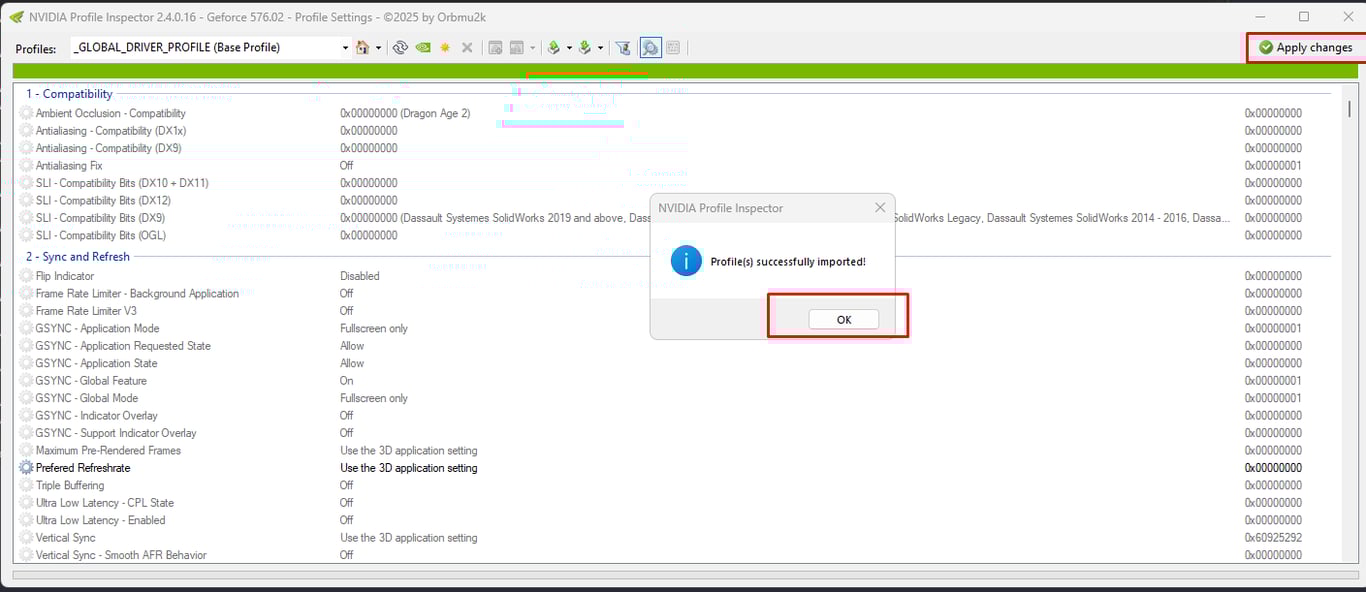
- This profile has settings specific to CS2.
- DO NOT change anything in the 3D section of NVIDIA. This will revert what we just did.
Scaling
Simple.
If you are playing on a native resolution, use no scaling.
If you are playing on a stretched resolution, set scaling to fullscreen and scale on the GPU.

Launch Options
-noreflex Only if you use an frame limiter like nvidia's or RTSS.
-threads 9 if you have 8 physical CPU cores.
The threads logic is easy: take the number of physical cores you have and add 1.
- 14900K has 8 P-Cores, so
-threads 9 - 9800X3D has 8 Cores, so
-threads 9
-mainthreadpriority 2 To raise the game's main thread on a higher priority. Keep in mind that if you are on an older CPU, this might cause some
You can also use no launch options as well. They are not mandatory.
In-Game Settings
Boot up CS2 and head to the video settings.
The screenshot below is tuned for performance while still looking decent. You don't have to copy it exactly, but one thing is non-negotiable: always set Dynamic Shadows to ALL. Skipping this actually hurts visibility.
For MSAA, 2X or CMAA2 both work fine.
I personally run 4X because my system can handle it and makes the game looks less pixelated.
