
How to Upgrade to Windows 11 25H2
Last tested: July 13, 2026
To upgrade to Windows 11 25H2, set the Windows Update Target Release Version policy to 25H2 with two registry commands, then check for updates in Settings. This makes Windows Update offer the 25H2 feature update immediately, even if it is not showing on your PC yet. It works on both Windows 11 Home and Pro, takes about two minutes of typing, and the upgrade itself keeps all your files and apps.
Before you start
- You need administrator rights on the PC.
- Install every pending update first: Settings > Windows Update > Check for updates. Feature updates are only offered to systems that are current.
- Create a system restore point. Nothing below is destructive, but a restore point is your one-click way back. Our CS2 FPS optimization guide shows exactly how.
Why bother upgrading? Staying on the latest Windows 11 release matters for anti-cheat software in particular. FACEIT AC, for example, can complain about missing updates on older builds. If you are fighting that error, see our TPM Attestation Not Ready FACEIT AC fix as well.
Step 1: Open Command Prompt as administrator
Search for cmd in the Windows search bar, right-click Command Prompt, and select Run as administrator. All three commands below go into this window, one at a time.
Step 2: Create the WindowsUpdate policy key
This creates the policy location the next two values live in. It is safe to run even if the key already exists.
reg add "HKLM\SOFTWARE\Policies\Microsoft\Windows\WindowsUpdate" /fStep 3: Turn on Target Release Version
This tells Windows Update that you want to target a specific release instead of waiting for the staged rollout to reach your PC.
reg add "HKLM\SOFTWARE\Policies\Microsoft\Windows\WindowsUpdate" /v TargetReleaseVersion /t REG_DWORD /d 1 /fStep 4: Point the target at 25H2
This sets 25H2 as the release Windows Update should offer you.
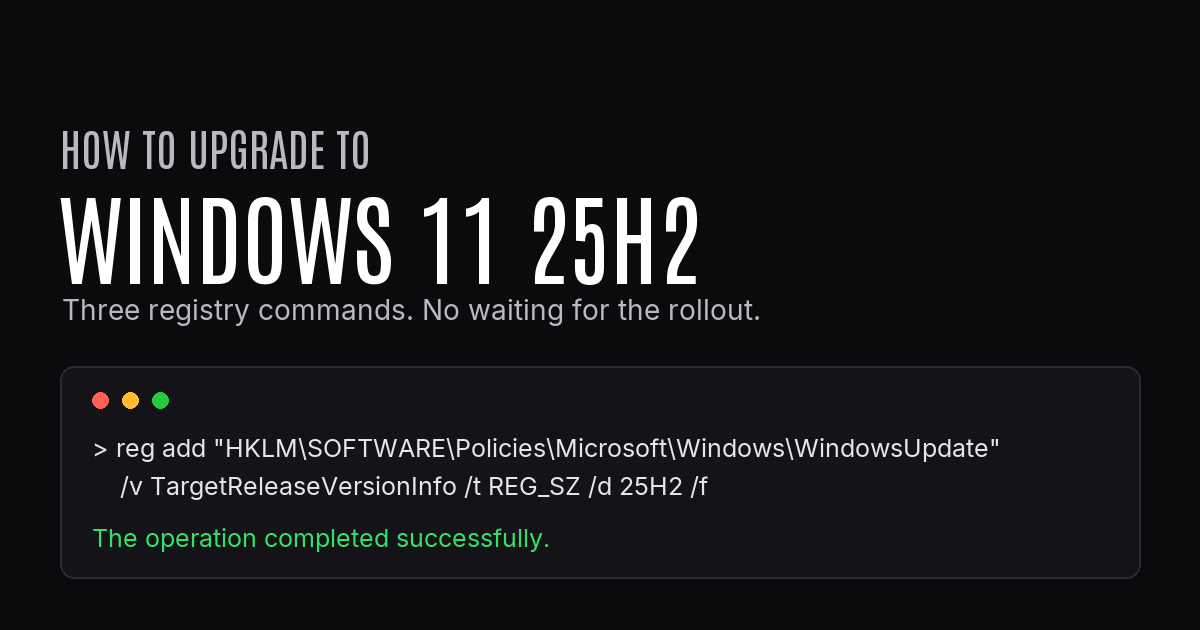
reg add "HKLM\SOFTWARE\Policies\Microsoft\Windows\WindowsUpdate" /v TargetReleaseVersionInfo /t REG_SZ /d 25H2 /fEach command should answer with The operation completed successfully.

Step 5: Check for updates
Open Settings > Windows Update and click Check for updates. Windows 11, version 25H2 should now appear as an available feature update. Click Download & install, let it finish, and restart when prompted. If it does not appear on the first check, restart the PC and check once more.
Verify it worked
To confirm the two policy values are in place before checking for updates:
reg query "HKLM\SOFTWARE\Policies\Microsoft\Windows\WindowsUpdate"You should see TargetReleaseVersion set to 0x1 and TargetReleaseVersionInfo set to 25H2. After the upgrade, press Win + R, type winver, and confirm it reports version 25H2.
After the upgrade: keep or remove the pin
The two values you added pin Windows Update to 25H2. That is useful if you want to stay on 25H2 and not be moved to a newer release automatically Microsoft's policy documentation describes Target Release Version as letting you specify the version a device should move to and/or stay on until it reaches end of service (Update Policy CSP).. If you would rather receive future feature updates normally, remove the pin with:
reg delete "HKLM\SOFTWARE\Policies\Microsoft\Windows\WindowsUpdate" /v TargetReleaseVersion /freg delete "HKLM\SOFTWARE\Policies\Microsoft\Windows\WindowsUpdate" /v TargetReleaseVersionInfo /fOther ways to upgrade to 25H2
If you prefer not to touch the registry, Microsoft's Windows 11 download page offers two alternatives: the Installation Assistant, which upgrades in place, and the ISO or media creation route for a clean install. A clean install gives the best performance result if you are willing to reinstall your apps; the registry method above is the fastest way to get 25H2 through Windows Update itself.
Frequently asked questions
Why is 25H2 not showing in Windows Update?
Microsoft rolls feature updates out in waves, so many PCs simply have not been offered it yet. The Target Release Version policy above skips the queue and requests 25H2 directly. Your system still needs to be fully updated and compatible for the offer to appear.
Does this work on Windows 11 Home?
Yes. These registry values set the same policy that Pro users can set through the Group Policy editor. Home does not include gpedit, which is exactly why the registry method is the practical route.
Will I lose files or programs?
No. This is an in-place feature update, so files, apps, and settings carry over. That said, a fresh install of Windows always delivers a cleaner result for performance. If you want the fully clean route, that is part of what we do in a consult.
Do I need to remove the registry values afterwards?
Only if you want future feature updates to arrive automatically. Leaving the pin in place keeps you on 25H2 until you change it, which some players prefer for stability during a competitive season.
How long does the 25H2 update take?
If you are coming from 24H2, 25H2 arrives as a small enablement package and usually completes Microsoft documents the 24H2-to-25H2 update as an enablement package, a small, quick-to-install switch that activates the 25H2 features (What's new in Windows 11, version 25H2). with one quick restart. From older releases it is a full feature update, so expect a longer download and install.
Sources & References
The technical claims in this guide are backed by the official documentation below and validated against our own testing.
- Microsoft — What's new in Windows 11, version 25H2 for IT pros
- Microsoft — Update Policy CSP