
How to Lock Your Cursor to One Monitor on Windows
Last tested: July 13, 2026
To lock your cursor to one monitor on Windows, download our free Simple Cursor Locker, pick the monitor you play on, set a hotkey, and press it to lock or unlock the cursor. The tool is a compact, open-source Windows utility (about 3 MB) that confines the mouse to a single display using the native Windows cursor API. No installer, no background services, no account. It works on both Windows 10 and Windows 11.
The problem: your mouse escapes to the second monitor
On a dual-monitor setup, games running in windowed or borderless mode do not always confine the cursor. Flick toward the edge of the screen mid-round and the cursor slides onto the second monitor; the next click focuses your browser instead of firing, and your game minimizes at the worst possible moment. Some games handle confinement well, many do not, and spectating, menus, and loading screens are unprotected in almost all of them.
Simple Cursor Locker solves this at the Windows level, so it works in every game and every mode.
Step 1: Download Simple Cursor Locker
Download the latest release from the official GitHub page: Simple-Cursor-Locker releases. Grab the windows-x64 ZIP, extract it anywhere, and run the executable inside. There is nothing to install.
Because the app is new and unsigned, Windows SmartScreen may show a "Windows protected your PC" prompt on first run. Click More info, then Run anyway. The full source code is public on GitHub, so you can audit it or build it yourself (see below).
Step 2: Pick your monitor
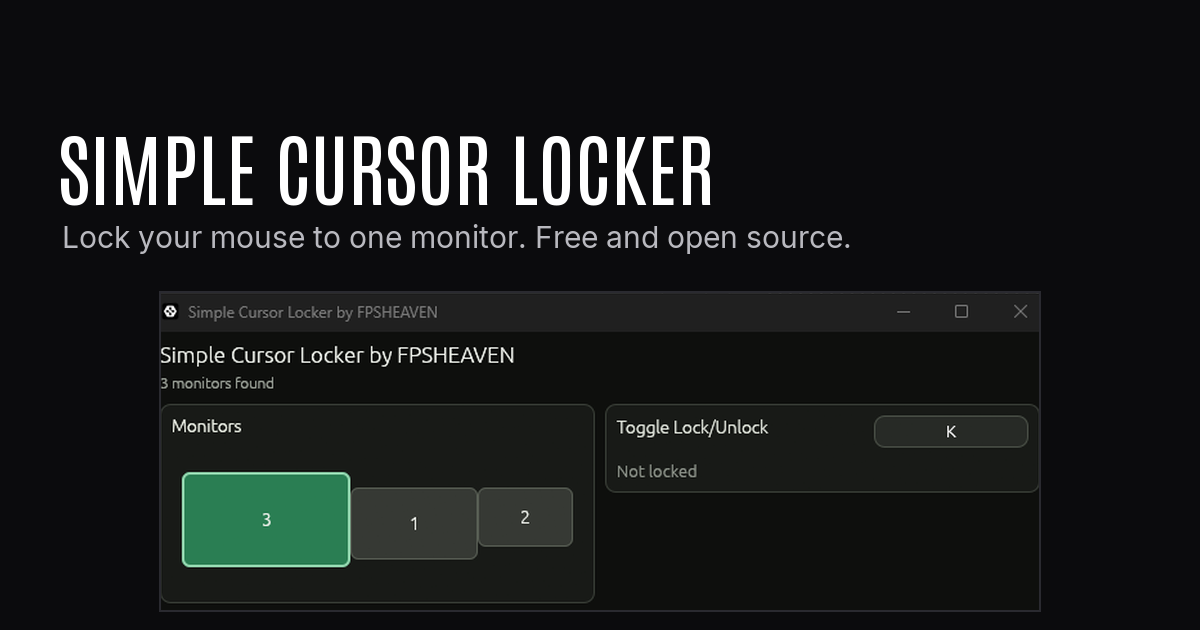
Open the app and you will see your monitor layout exactly as Windows arranges it. Click the monitor you want the cursor confined to, which is normally your main gaming display.
Step 3: Set your lock hotkey
Click Set key and press the key or shortcut you want to use. Pressing that key from now on toggles the cursor lock on and off.
One design detail matters for gamers: the bind is polled, not reserved. Your key still reaches Windows and the game normally, so binding something you also use in-game will not swallow the input. Single-key binds work, just remember that the lock will toggle every time you press that key.
Step 4: Lock and play
Press your hotkey before the match starts. The cursor now cannot leave the selected monitor, in any game, any window mode, any menu. Press the same key to unlock when you want to reach your second screen.
Emergency unlock
If you ever lock yourself in without a working hotkey, Ctrl+Alt+Esc releases the lock. This is the only reserved Windows hotkey the app registers, and only when Windows allows it. If another app already owns that combination, set your lock/unlock key before locking. The app also releases the cursor lock and unregisters all hotkeys automatically when it closes.
Frequently asked questions
Why does my cursor move to the other monitor while gaming?
Windowed and borderless window modes leave the cursor free to cross screen edges, and many games only confine the mouse during active gameplay, not in menus, loading screens, or spectating. A system-level lock covers all of it regardless of what the game does.
Will the hotkey stop working in my game?
No. The bind is polled without reserving the key, so the same keypress still reaches the game and Windows normally. The only reserved combination is the Ctrl+Alt+Esc emergency unlock.
Does it touch the game or its process?
No. It does not inject into any process, does not read or write game memory, and does not hook input. It only uses the standard Windows cursor-confinement API on the desktop. The source is open on GitHub if you want to verify that yourself.
Is it free?
Yes, free and open source, built by FPSHeaven. If you like small tools like this, also check our Simple Power Plan Manager and the DDR Die-Finder.
Does it work on Windows 10?
Yes. The cursor-confinement API it relies on is part of both Windows 10 and Windows 11, and the app behaves the same on both.